VOL: 001 Issue: 002 - April 2005
Backup Backup Backup
By Jeff Bourque
www.thecomputergeek.ca


Every service call we make we always ask did you back up your files?
The look we receive is similar to the look of a deer looking into the head lights of an on coming vehicle.
I can never stress enough the importance of backing up your files!
The loss of personal and business data can not only be a stressful process but a costly process to recover.

In this issue of The Computer Geek I thought we would talk about how to backup your files and the types of devices you can back them up to.

Creating a folder

Open My Documents
1. Under File and Folder tasks, click Make a new folder a new folder is displayed with the default name, New Folder, selected

2. Type a name for the new folder, and then press ENTER.

Notes

To open My Documents, double-click the My Documents icon on your desktop.
You can also create a new folder by right-clicking a blank area in a Folder window or on the desktop, pointing to New, and then clicking folder.

To move files by dragging

1. Open Windows Explorer
2. Find the file or folder you want to move.
3. Make sure the destination for the file or folder you want to move is visible.

For example, if you are
moving a file from the My Documents folder to the desktop you might need to resize Windows Explorer so the desktop is visible.

4. Drag the file or folder to the destination.

Notes

To open Windows Explorer, click Start, point to Programs, point to Accessories, and then click Windows Explorer.
If you drag an item while pressing the right mouse button, you can move, copy, or create a shortcut to the file in its new location.

To copy the item instead of moving it, press and hold down CTRL while dragging.
If you drag an item to another disk it is copied, not moved. To move the item, press and hold down SHIFT while dragging.


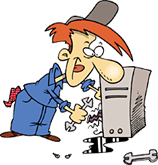
"The look of a deer looking into the head lights of an on coming vehicle"


To copy a file or folder

1. Open My Documents. If the file or folder you want to copy is not located in My Documents or its subfolders, use Search to find it. To open Search, click Start, point to Search, and then click For Files or Folders.
2. Click the file or folder you want to copy.
3. Under File and Folder Tasks, click Copy this file or Copy this folder.
4. In Copy Items, select the drive or folder you want to copy to, and then click Copy

" Drag & Drop or Copy & Paste your files into your backup folder"
Notes

To open My Documents, double-click the My Documents icon on your desktop.
You can copy more than one file or folder at a time.
To select consecutive files or folders, click the first item, press and hold down SHIFT, and then click the last item.
To select nonconsecutive files or folders, press and hold down CTRL, and then click each item.

Backing up e-mail

Every e-mail client is different so the best advice we can offer here is to refer to the help section of your e-mail software and refer to importing exporting e-mails and contacts.

Backup Devices

There are all kinds of backup devices to choose from and they range in wide variety of storage sizes, There are CDRW, USB Pens, USB External Hard Drives and Zip Drives just to name a few.

Backup Software

There all kinds of backing up software to use.
The most common ones are for backing up your system files.
They make a copy of all system files so you can move your operating system to a new hard drive!
They also make a copy of all your applications and and personal files.
They are most commonly known as ghost software or mirror software
EX: Norton Ghost

"Address your questions or comments to geek@thecomputergeek.ca"

Official Sponsors


Fill out your e-mail address
to receive our newsletter!

Subscribe Unsubscribe